Settings
Settings holds the screens that set up Kraft itself: the repos it works on, the agent CLIs it drives, its limits and how you reach it. Each page with something to save says in its header whether a change sticks.
| Screen | The file it edits | A change |
|---|---|---|
| Repos | repos.yaml | Draft: Review & publish |
| Forge accounts Added in 2.5 | forges.yaml | Each action saves as you take it |
| Harnesses | harnesses.yaml | Draft |
| Policy | policy.yaml | Draft |
| Auto-intake | intake.yaml | Draft |
| Notifications | notify.yaml; This browser is kept in the browser | Saved on change |
| Access | access.yaml | Saved on change; Restart to apply only while an edit waits for a restart |
| Appearance | theme.yaml | Saved on change |
| Board & code | theme.yaml | Saved on change |
| Workers | workers.yaml | Each action saves as you take it |
| Storage | None: it reads the run folder; the limit and quota are in policy.yaml | No settings |
| About | None | Switches and hours save on change |
A draft screen shows a draft chip instead of a saved word. Esc leaves Review & publish, then the YAML view.
Repos
Repos lists the connected repos with each one's chain, whether it can run work, its test command and state. Select a repo to change its fields. See repos.yaml.
| You see | It means |
|---|---|
| No setup | No setup command is declared, so the first work item stops there |
| No tests set | Tests are unset, so the first work item stops there |
| Ready | Both are set. Kraft keeps no verify result per repo |
Connect repo on a repo already connected offers Update, which saves only what the entry left undecided, as kraft repo connect does. A repo with no commit yet can't connect: Check again reads it once you have committed.
A repo's fields
A selected repo's Config tab groups its fields under Running, Tests, Agents, Limits and Forge. Fields still at their default fold into N defaults · show; one you set, changed or that has a problem stays in view. Edited in YAML lists the keys with no field here (env, sandbox, ci_checks, library_auto_update, automated_review, post_merge_publish_jobs) and links to the repo's YAML tab.
| Switch | What it says |
|---|---|
| No setup needed, beside setup command | A fresh checkout needs nothing installed (setup_command: "") |
| No tests, beside test command | The repo has no tests (test_command: ""): its items pass verify without running any. Turning it off leaves the command unset, which stops each item at verify |
The phone's Repos has the same two switches.
Forge accounts
Added in 2.5
Forge accounts lists each account in forges.yaml: Name, State, Forge with its web address, Token, Checked and Used by (the repos that name it). For a cli account Token shows gh's or glab's own sign-in. For an API account State says who the token signs in as, when it expires, whether single sign-on is needed and which repos it can't see. With no accounts, Kraft uses gh and glab as they are signed in. See forges.yaml.
| Control | What it does |
|---|---|
| Add account | cli keeps the sign-in of gh or glab. api adds a CA file and Token from: git credential, variable, file or paste. A pasted token is kept in a file under secrets/ and never shown again |
| Edit | Changes everything but the name, forge and web address (remove the account and add it again for those). A variable is read at server start, so a new value needs a restart |
| Replace token | Only on an account that is already api |
| Test | Checks the token; reads Testing… while it runs |
| Remove account | Refused while a repo names the account. Otherwise it goes after a five-second undo |
An account whose token comes from a command shows no command text, since it can hold a token. Its Client is locked and the server refuses a browser change to its token or client (403): use kraft admin forge edit on the server's machine. A phone can Test, Paste a new token and Remove; add an account on a wider screen.
Harnesses
Harnesses lists the agent CLIs Kraft can drive, whether each is installed and who may use it, and the agent profiles tasks pick a model by. A lane per harness groups its tasks under their chain, and the pane header gives its health and access. See Switch a task to another harness.
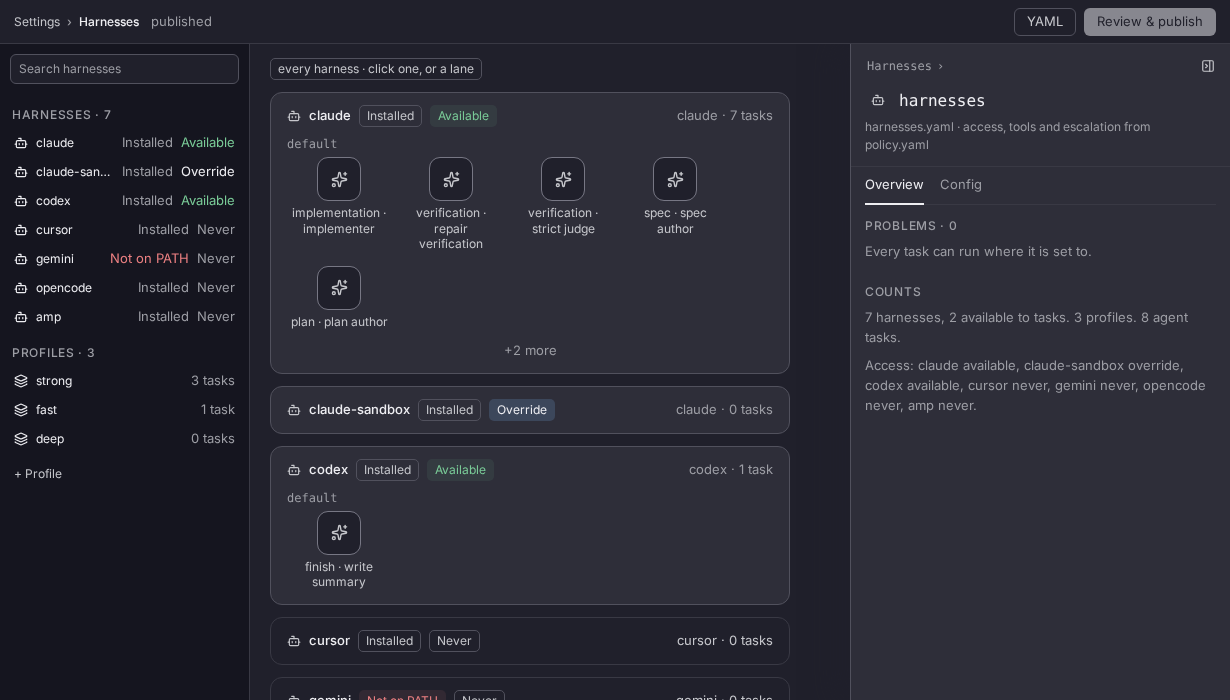
+ Profile adds a profile. One labelled From Kraft's package can't be edited, renamed, copied or removed here: define it in harnesses.yaml to change it.
Policy
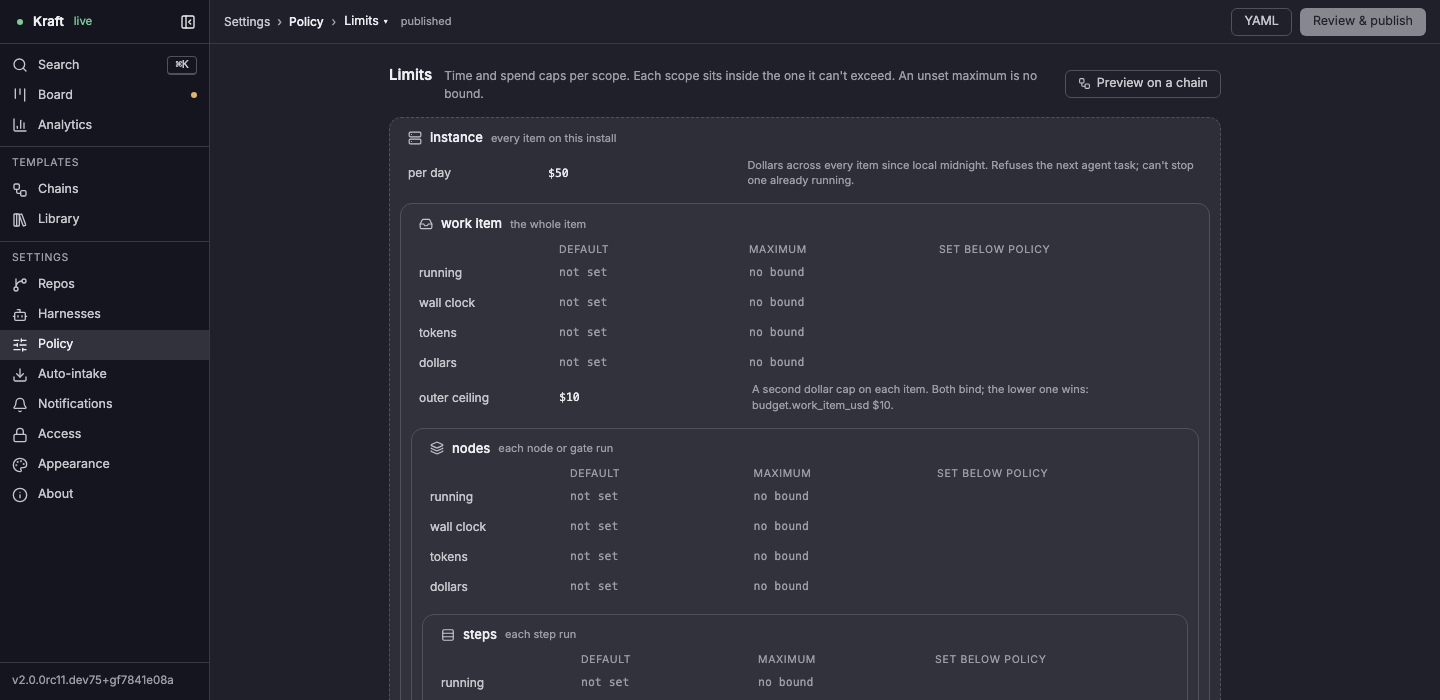
Policy has three tabs; a dot on a tab marks a change or a problem in it. See Caps and budgets.
| Tab | What it sets |
|---|---|
| Limits | Time, token and dollar caps by scope (the work item, nodes, steps, tasks) and the daily dollar cap. A scope that sets no cap is one line, N unset caps · show |
| Loops | Fix-loop defaults, findings and stuck-item handling. Where attempts or wall clock are set in more than one place, the most specific wins: the item's policy, then the loop's keys, then its node, then its loops: entry |
| Housekeeping | Concurrency, relaunches, archive, the forge timeout, and the worktree storage limit and quota (a size such as 10G; blank is off). Automatic clean-up takes an age (2d). Merge request footer turns off the "Opened by Kraft" line |
Auto-intake
Auto-intake sets whether Kraft starts the open, unblocked issues in each repo's bd tracker (the issues of beads) by itself, and its schedules. The status card holds the on/off switch and the pickup rule; blank Repos is every enabled repo. A cron Kraft can't run is explained and not saved. See Schedule or webhook work.
Notifications
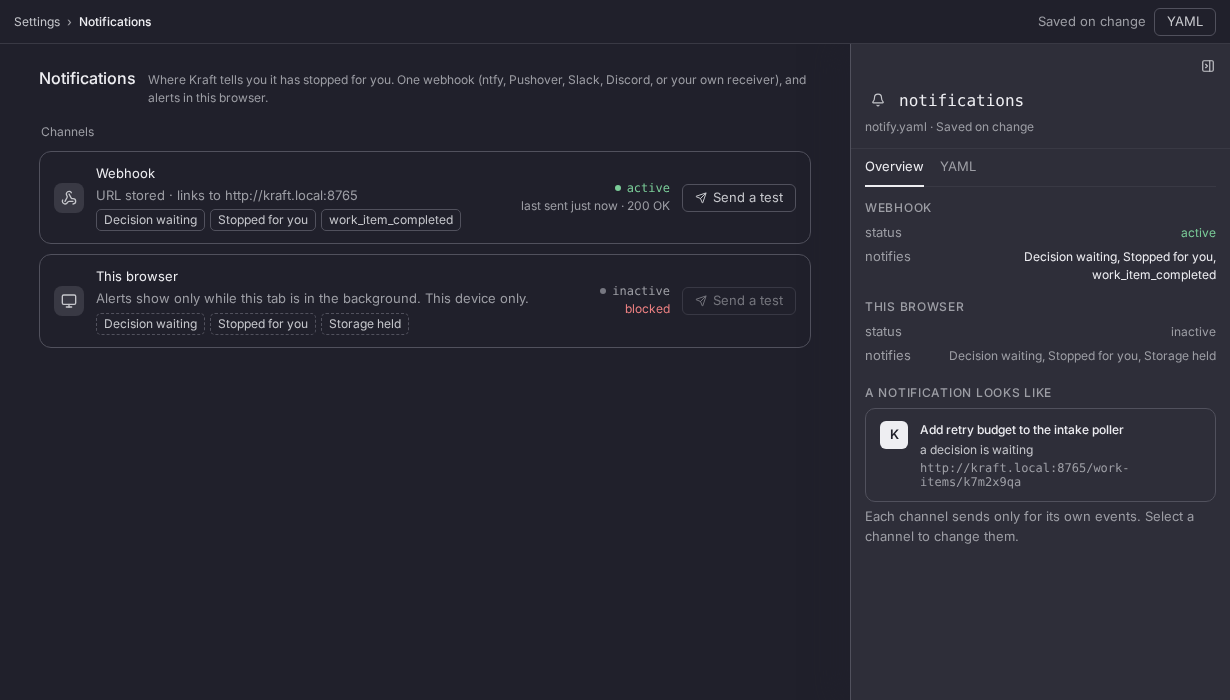
Notifications sets where Kraft tells you it has stopped and waits for you: a Webhook and This browser. Send a test checks each. Allow notifications, and accepting the browser's prompt, turns This browser on. See Get notified when an item needs you.
Access
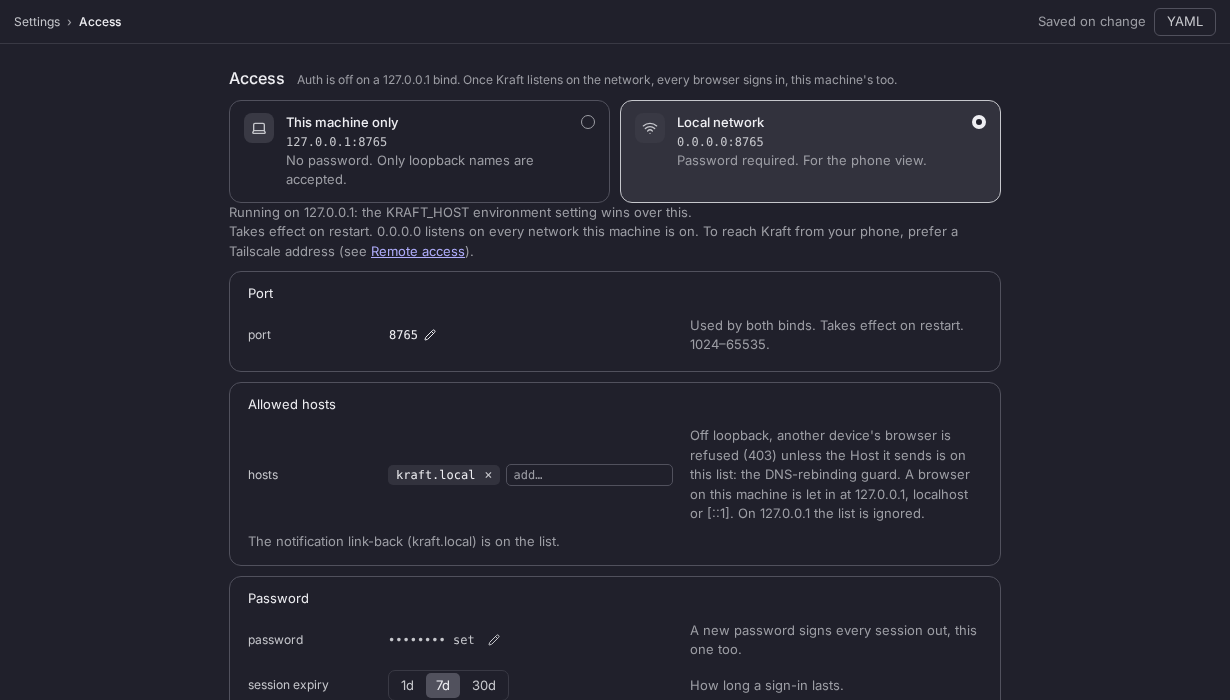
Access sets who can reach the board: This machine only (127.0.0.1, no password) or Local network (0.0.0.0, password required), with the port, the allowed hosts and the password. See Remote access.
Appearance
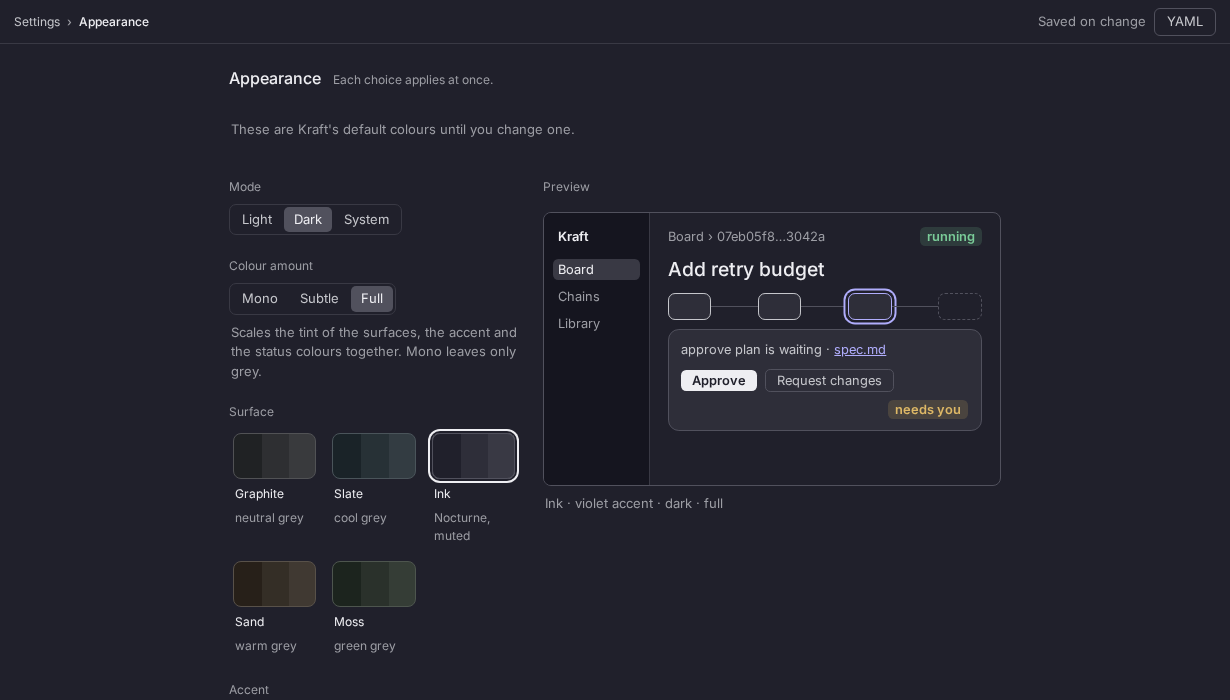
Appearance sets how the web UI looks: theme, colour, surface, accent and Density. An accent from an older file that is no longer offered (green, amber) paints as None.
Board and code
Added in 2.1
Board & code sets how Kraft behaves where you read code and work the board. It was part of Appearance, and it is the same theme.yaml: your saved choices carried over.
| Setting | What it sets |
|---|---|
| Syntax highlighting | The colour scheme for code in review diffs, for light and dark separately |
| Review diff | Side-by-side or Inline, the added and removed colours, whitespace changes, changed words, line wrapping and one file at a time |
| Board › Open items in | Peek, the side panel, or Full page |
| Default editor | An editor found on this machine, or Not set, which uses KRAFT_EDITOR, else the system's default app. Set it on a computer; a phone doesn't show it |
Workers
Added in 2.4
Workers lists the machines that may run work item steps, as kraft admin worker list does, and adds, edits and removes them. Both write workers.yaml. See workers.yaml. A step that runs on a machine shows its name under machine in the task pane, and unreachable since when the connection drops.
| State | It means |
|---|---|
| online | The machine takes steps |
| offline, with a reason | Kraft can't reach it |
| disabled | It takes no new steps; running ones finish |
A row also shows how Kraft connects (this machine, over ssh or dials in) and the steps running against its limit.
| Control | What it does |
|---|---|
| Add machine | Over ssh, Add and connect saves the machine and connects once; if that fails it stays saved and Kraft keeps trying. A machine that dials in gets the kraft admin worker serve command with its token, shown once |
| Takes new steps off | Lets running steps finish and starts nothing new |
| Rotate token, on a dial-in machine | Stops the current token at once and shows a new one once |
| Remove machine, in the Edit dialog | Greyed out while a step runs on the machine, with the reason. Otherwise the row goes after a five-second Undo. local can't be removed |
On a phone, More › Workers shows the list and changes nothing.
Storage
Added in 2.1
Storage shows what the worktrees use against the limit and quota set under Policy › Housekeeping, and archives finished items when you confirm. See Free disk space.
| You see | It means |
|---|---|
| Usage bar, amber | Over the quota |
| Usage bar, red | What archiving can free is over the limit, and the page says starts are held |
| can be cleaned up, with a box | A completed or abandoned item that isn't archived. Every other row has a greyed box |
| Worktrees columns | Per item, largest first: its size (what archiving frees), its documents (kept by archiving, removed by abandoning), its step outputs (freed by archiving) and when it last changed |
| Control | What it does |
|---|---|
| Clean up selected, Clean up all | Confirm first, showing what is freed, where usage lands against the quota and limit, and per item the uncommitted files lost and whether its branch stays. Each item moves to Archived, restorable as a record without its worktree |
| Refresh | Measures again, which can take half a minute on a large instance |
On a phone, More › Storage shows the same figures and one Clean up all.
About
About opens from the version line at the sidebar's foot. It shows the version, whether an update is available or waits on a restart, and how this instance runs. Copy diagnostics copies them for a bug report.
Update when Kraft is free
Added in 2.3
About holds the controls for updating when Kraft is free.
| Control | What it does |
|---|---|
| Install when free, Don't | Marks the available release, or drops the mark. A new major has its own button |
| Update automatically, Restart when free | The two switches of update.yaml, both off until you turn them on |
| Allowed hours | The ranges Kraft may update and restart in |
A line says what is waiting and why it hasn't happened (waiting for 1 running item, outside 01:00-06:00, attached to a terminal), and the last attempt applied or failed with the reason. The sidebar's version badge reads update marked while a mark waits. With KRAFT_NO_UPDATE_CHECK set, auto-update finds no release.
Related
- Configuration: the YAML files these screens edit.
- Templates: the Chains and Library screens.