An item's page
An item's page shows one work item: its brief, its chain drawn as a graph, and an inspector for whatever you select. This page names the header's actions, the graph and the inspector's tabs, one heading for each part.
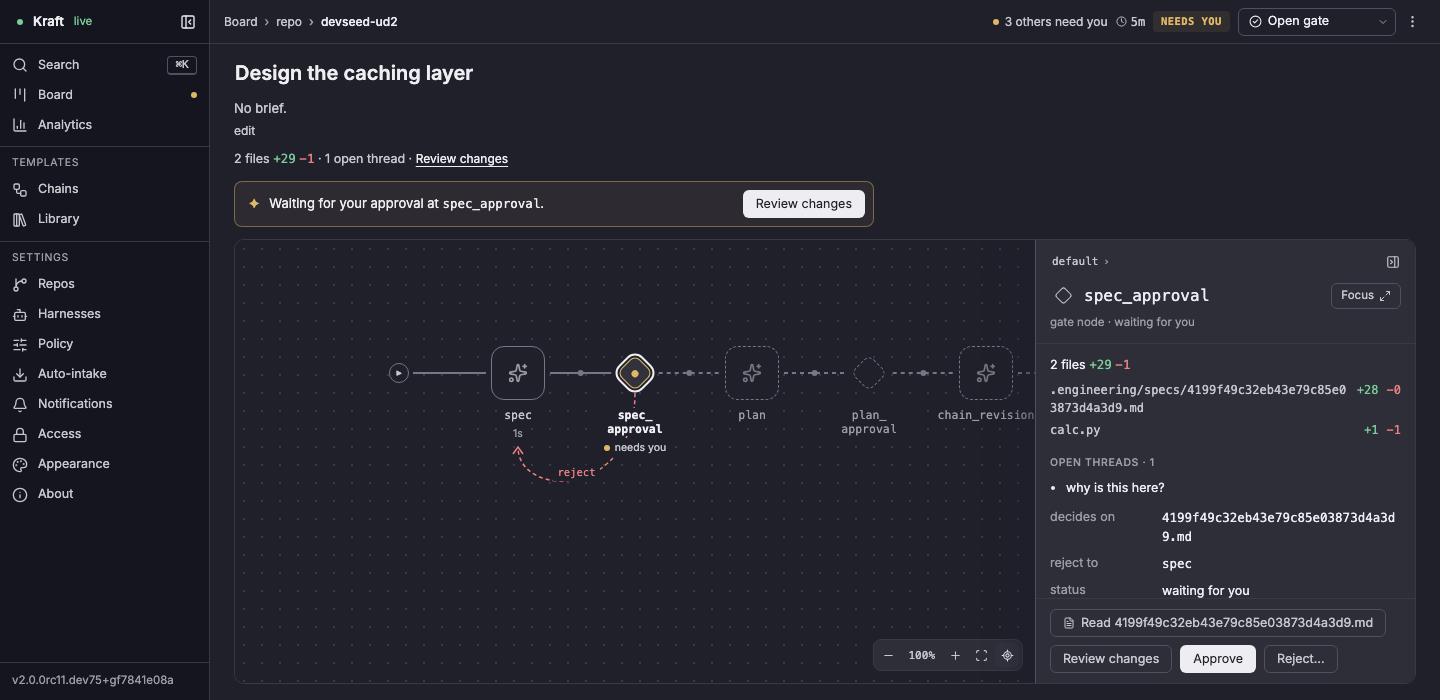
The page
An item's page, at /work-items/<id>, is under Board › repo › item in
the header: Board goes back to the board, and the repo opens the board
filtered to that repo. The page has:
- its title and brief at the top (edit changes the brief);
- the size of the change so far, with a Review changes link;
- a banner when the item needs you, such as Waiting for your approval at
spec_approvalwith Review changes, which opens the review page at that gate with the gate's brief beside the diff.
The line under the brief counts the changed files and, when there are any, the open review threads.
The main action
The header at the top right shows how long ago the item was created (or how long it ran, once it has ended), its status, and the main action, which is always one the item can take:
| The item | Main action |
|---|---|
| never started | Start |
| running or waiting | Pause |
| paused | Resume |
| at a gate | Open gate, which selects the gate (on the review page, opens its document) |
| asking a question | Answer, which goes to the answer box |
| stopped at a cap or a budget it can raise | Raise cap, which opens the editor for the limit the stop names, or Config's budget editor for the item's own dollar cap. A cap that names no limit opens Config. Which stop offers what |
| stuck, failed, or with an escalation running | Retry |
| stopped on a rebase conflict | Review conflicts |
| stopped because its MR was closed | Reopen MR |
| done or cancelled | Archive |
| archived | Restore |
An item that never started reads NOT STARTED, here and on the phone, never Paused.
Header actions
The header has two menus, and some actions that ask before they act.
The menus
Clicking the main action's name runs it. Its ▾, or the pointer resting on it, opens a menu over it with the main action first and then the others that fit the item's state: Escalate…, Mark complete…, Archive and Cancel…. Each of those that asks for more opens a card under the button.
The ⋮ menu holds Review changes, Item settings, Open worktree in editor, Copy ID and Copy link, and Duplicate as new item once the item has ended.
Click the title to rename the item: Enter or clicking away saves, Esc cancels.
Escalate…
Escalate… is offered only on an item stopped or paused after it started. It is not offered at a stop on a dollar or token budget (raise the cap first), nor while an agent session is running on the item's pending gate, nor while an escalation is already running.
Once the item has an escalation thread, it offers Start a new thread and says what it changes: it continues the last thread, which remembers its earlier turns, or starts a fresh one that does not see it.
Mark complete… and Cancel…
Both say, before you confirm:
- what they stop (when something runs: the running attempt and how long it has run, whose work is lost);
- what they keep (the branch, the worktree, findings and the run log);
- what the status becomes.
The chain graph
The middle of the page draws the item's chain, frozen when the item was filed, node by node. A box is an agent or a command (an exec node); a diamond is a gate. Each node shows how it went and how long it took, and a gate that sends work back draws a reject arc to the node it reruns.
A node that ran more than once carries a ×N badge: the most times any one of its tasks ran, whether by a retry or a fix-loop round. A changed-test-scope task counts its rounds, not the scopes in them. The badge is red on a node stopped at its cap.
- Click a node to show it in the inspector.
- Double-click a node, or press Enter on it, to open its own view at
/work-items/<id>/nodes/<node>, which draws the tasks inside the node. ← chain goes back. - Drag to pan. The controls at the bottom right zoom in and out, fit the chain to the window (down to 30%: a longer chain than that still pans), and center on the current node.
Where the graph opens
It depends on the item:
- An item that has not started opens at a readable size, never under 80%, starting from its first node; pan to see the rest.
- A failed or finished item opens fitted but never under 45%, and a chain too long for that opens on the node it stopped on, or its last node.
The inspector
The panel on the right of the graph shows whatever you selected: the chain, a node, a gate or a task. Its heading names it. Collapse pane at the top right, or Esc, folds it away. Esc leaves it open while the cursor is in a box that holds text, so the text is not thrown away.
A gate that is waiting has a heading of its own. The Config values before the item starts have a page of their own, as do a node's fix loop and a changed-test-scope task.
The chain
| Tab | What it shows |
|---|---|
| Overview | the item's status, progress, the node it is at, the spec or plan attached when it was filed, what it has spent, and its recent events. Click an attachment's name to read it, even before the item starts |
| Config | its limits and overrides, as in the side panel on The board |
A node
| Tab | What it shows |
|---|---|
| Overview | its progress, what runs next, what it spent and its steps, with Retry to rerun it once the item has stopped |
| Config | its settings |
A paused item offers Resume in Overview instead of Retry, and a running or waiting one has no Retry. Focus, at the top right of a node's panel on the chain, opens the node's own view. Clicking a step, or a step's task, opens that view with it selected.
A task
A task has the tabs Overview, Input, Output, Log and Config. The escalation task has a sixth, Thread, before them.
| Tab | What it shows |
|---|---|
| Thread | on the escalation task, first of its tabs: the conversation up to the turn you picked |
| Overview | the harness and model the attempt ran on |
| Input | what the API keeps of what went in: the head commit, the fix-loop round it carries findings from (or "first pass"), the escalation thread, and a pending steer |
| Output | the session's own summary note, led by wrote on a task that writes a document |
| Log | the agent session's own log; full screen spreads it over the whole window, and Esc brings it back |
| Config | the attempt's own values, read-only: its path, model, attempt number and head commit. Before the item starts, the draft's overrides |
Two tabs show more on some tasks:
- Overview on the task that implements the plan also shows how far through
the plan's sub-tasks (its
## Task Nheadings) the work is, with the commit that finished each one and a link to the plan. - Output on a task that writes a document (its
produces, such as the work brief) leads with wrote, which opens that document, above the session's own summary note. It is on the newest attempt only, once that attempt is done, since each attempt rewrites the one file, and not on an escalation, a gate'sauto_reviewor a fix loop's repair and judge.
A task that ran more than once
The subtitle under its name reads attempt n of m ▾. Click it for a menu of every attempt, newest first, each with how it went and how long it ran, and pick the one every tab shows.
The tabs follow the newest attempt as it starts. Pick an earlier one and they stay on it, while the count shows the newer ones; pick the newest again to follow.
On the escalation the menu counts turns, turn n of m ▾, as its Thread tab does.
What Esc does on the page
One Esc steps the page back one level, in this order:
- Whatever is open over the page takes it first: the review, a picker, the escalation card, the full-screen log or a document.
- Then the inspector folds.
- Then a node's own view goes back to the chain.
A box that holds text, and an open menu or dialog, keep their own Esc. In a changed-test-scope task, Esc first steps back from a scope to its task, and from the task to its box.
A gate that is waiting
The panel of a waiting gate shows:
- the files changed so far;
- the open review threads;
- the document it decides on;
- where a rejection sends the work.
At the bottom:
- Read followed by the document's name opens it in a panel on the right (full screen widens it).
- Review changes opens the review page.
- Approve and Reject… decide the gate.
Related
- Fix loops and test scopes: the node view of a fix loop's rounds and a changed-test-scope task's chips.
- Config before an item starts: where a Config value comes from, and the draft that Start asks about.
- The review page: where Review changes and a waiting gate's Review changes open.
- The board: the side panel, whose main action is the same as this header's.
- Raise a cap on a stopped item: what Raise cap opens, stop by stop.