The review page
The review page shows an item's diff with a bar along the bottom that holds your review. This page names its parts: comparing, marking files viewed, commenting on a line, finishing a review and the page at a gate. For what each outcome does, see Reviewing a change.
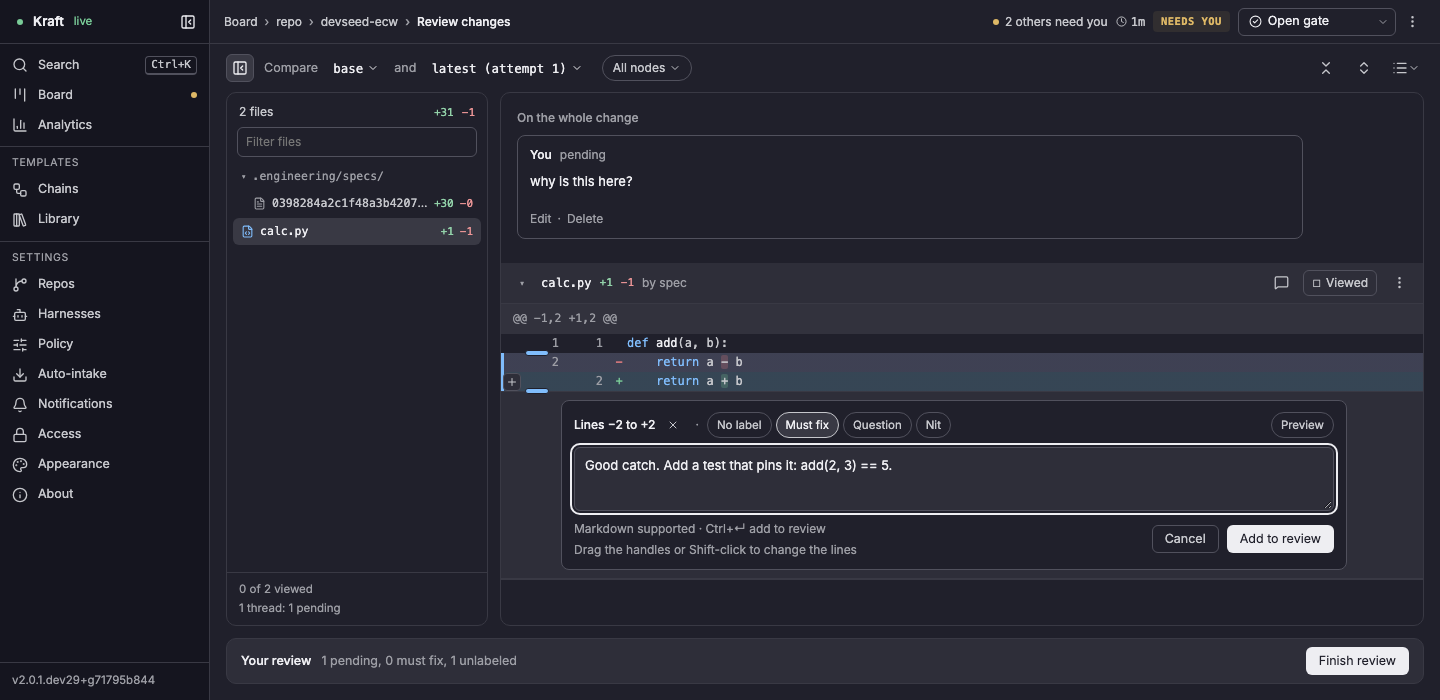
Review changes opens the review page at /work-items/<id>/review. You can
open it at any point in the item's life, not only at a gate. The file tree is
on the left, the diff on the right, and a bar along the bottom holds your
review.
At a gate
Review changes from a waiting gate opens the review page with the gate's document first, rendered, and the gate along the top: its name, WAITING FOR YOU, how many comments are pending, and Request changes and Approve. The changed files are listed on the right; Review changes below them switches to the diff.
Compare
The toolbar has two menus, Compare from and Compare to:
- Compare from: base, the item's starting point; an earlier attempt; or your last review, to see only what changed since you last submitted one.
- Compare to: latest (attempt N), the current state of the branch, or an earlier attempt.
Attempts are listed while a gate waits for you.
All nodes ▾ limits the diff to the files chosen nodes touched. On the right, the toolbar collapses or expands every file, and the list button holds the diff settings: Side-by-side or Inline, whitespace changes, changed words, line wrapping, and one file at a time.
Viewed
Each file's header has Viewed. Tick it once you have read the file: the file folds to its header, the tree dims it, and the foot of the tree counts how many you have viewed out of the total. Untick it and the file opens again. Each header also has a button to comment on the whole file, and a ⋮ menu with Copy diff and Copy path.
In the tree, each file has an icon for its kind: code, a shell script, configuration, Markdown, or any other file.
Unchanged lines
A diff shows three unchanged lines around each change. The row that heads each
block of changes, the one starting with @@, has arrows for the lines left out
above it:
- ↑ shows 20 more lines above the block.
- ↓ shows 20 more lines below the block before it.
- ↕ shows every line in between. A gap of 20 lines or fewer has only this one.
A row at the foot of the file does the same for the lines after the last change. You comment on a line shown this way as on any other. A new or deleted file has no arrows, since the diff already holds all of it.
A thread on a line the diff leaves out, one you added this way or one filed
with kraft item comment, has its line shown when the page loads, with three
lines either side, and sits under it. A file too large to read whole keeps
such a thread in the list at the foot of the page.
Commenting on a line
Hover a line and click the + that appears at the left of its number. To comment on a few lines, drag the + down to the last one you want; the lines shade as you go. A drag stays inside one hunk of the diff. For a longer range, click the first line's + or number, then Shift-click the last one's. Dragging down the numbers picks a range too. c or Enter also opens the box on a pick.
Each side has its own lines. In Side-by-side, each half has its own +. In Inline, an unchanged line has two numbers. To comment on the old file's line, click the left number, then +. To comment on the new file's line, click the right number, then +.
A range can run across sides, as GitLab's and GitHub's do. Drag from a removed line's + down to the line that replaced it, or Shift-click it. In Side-by-side, drag or Shift-click across to the right half. The range then covers every line between its two ends.
A comment box opens under the last line. Its header names the lines, marked as the diff marks them: Line +5, Lines +5 to +7, Lines −2 to +2. The thread it makes is headed the same way.
Moving the range
While the box is open, the shaded range has a small handle on its first and last rows.
- Drag one to move that end, even past the other end, which flips the range.
- Shift-click another line, or press Shift+↑ or Shift+↓, to move the end too.
- The box keeps what you wrote, and × next to the lines goes back to the last line alone.
A suggested change you typed moves with the range, and the box says which lines it was written for; on a range across sides it is set aside, and not sent, until the start is back on the new side.
After you add the comment
- Once you add the comment, its thread stays under the last line, headed with the lines it covers.
- A thread on no file, such as one from
kraft item comment --bodyalone, is listed above the files under On the whole change. - A range's lines stay shaded and are quoted in the thread, and the agent that
reads the thread gets the same quote, as it does for one made with
kraft item commentor an agent'sadd_review_comment, which Kraft quotes from the diff.
The pick clears when the box closes.
In the comment box
- Pick a label: No label, Must fix, Question or Nit. What a Must fix label blocks is in Must-fix.
- Write the comment. Markdown works, and Preview shows it rendered.
- ± Suggest change, on lines of the new side, adds the lines you picked, for you to edit into the code you want. Left as it was, it is not sent. It is off for a range that runs across lines the diff does not show, and a range across sides has none.
- Add to review, or ⌘↵ (Ctrl+Enter), keeps it as a draft. Drafts reach no agent until you finish the review. Cancel or Esc asks before it throws away what you wrote.
From the keyboard
The keys that pick a line, extend the pick, comment and move between files are in Keyboard shortcuts. Tab from the lines reaches the picked line's +. Shift with the arrows keeps to one side, so a range that crosses sides is made with the mouse: the handles or Shift-click.
Finish review
The bar at the bottom reads Your review with your drafts counted: N pending, N must fix, N unlabeled. Finish review opens Finish your review, which lists the drafts it will send, takes an optional overall note, and offers three outcomes. Reviewing a change says what each one does.
| Outcome | Offered when | What it does |
|---|---|---|
| Request changes | Fix rounds are left, the item is not done, cancelled or archived, and the dialog has found the node it would send the threads to. | Shows, before you submit, where the work will restart, the nodes that run after it, and which fix round this would be (Fix round N of M). |
| Comment only | Always. Outside a gate, the server refuses it with a 409 when nothing ahead in the chain will read the comments. | Sends the threads without stopping anything. Agents answer questions in the thread; at a gate, the gate stays open. |
| Approve | Only at a gate. | The same as Approve on the gate. It stays grayed out while a must-fix thread is open. |
Request changes reads the same target the submit acts on, so the dialog and the submit cannot differ.
- At a gate the dialog reads Reject gate · goes back to node, and its button reads Reject to node.
- When no fix rounds are left, the dialog says No fix rounds left and Request changes is disabled.
Submit review sends it (at a gate, with Request changes chosen, the button reads Reject to node instead).
Once a review has gone out:
- The bar reads N of M resolved and offers Request changes and Approve directly.
- A comment you add after that shows there as pending, Finish review comes back beside them, and Approve opens Finish your review first, so a new comment is never sent with an approval unseen.
Reviewing a change lists the CLI verb behind each of these.
Related
- Reviewing a change: what comment, approve and request changes do, and the CLI verb for each.
- An item's page: the page Review changes is opened from, and the gate card with Approve and Reject….