Your first work item
Start Kraft, connect a repo, run a work item end to end, and approve the gates that stand in its way. A work item runs through a chain of nodes, and some nodes are gates where you decide.
Steps 1 to 5, on the quick-task chain, take about fifteen minutes, most of it
spent waiting on an agent. Steps 6 and 7 run the default chain to a merged
pull request. They take longer, because they wait for your approvals, CI, and
the forge.
Before you start
You need:
- Kraft installed, with a git identity set and Kraft registered with Claude Code
(the plugin, or
kraft admin init), and Claude Code logged in. See Install. - A git repo to work on, with at least one commit (
git log -1shows it: a work item's branch starts from one) and a committed.gitignorecovering build output and caches (__pycache__/,node_modules/,target/and the like). After each agent task, Kraft commits every file the agent left in the worktree that git does not ignore. - A git identity in that repo:
git config user.nameandgit config user.emailboth print a value there. If the repo overrides the identity Install checked, check it again here. - A test command for the repo. Step 2 has Kraft propose one.
/kraft:onboard. Steps 3 to 7 have slash commands as well:
/kraft:handoff to file work, /kraft:board to see it, /kraft:gates to
approve. See Use Kraft from your agent.1. Start the server
The server you started in Install
must still be running, in its own terminal. If it is not, start it again with
kraft, which prints kraft: http://127.0.0.1:8765, and leave it running. With no repo connected yet, the board shows three
setup steps: the setup wizard on first start
describes them, and step 2 does the same job from a terminal or your agent. Do
everything that follows in a second terminal.
You know it worked when http://127.0.0.1:8765 opens the board. If kraft refuses to start,
see Kraft won't start: port already in use.
2. Connect a repo
Connect it from your coding agent, or from a terminal.
From your agent (recommended)
Open a Claude Code session in the repo you want Kraft to work on. This needs the Kraft plugin from Install:
cd ~/code/my-project
claude
Then, in the session:
/kraft:onboard
Follow what it asks. It connects the repo and makes sure Kraft knows how to set
it up and run its tests, so your first work item doesn't stop on a wrong guess.
The plugin also registers Kraft's MCP server with Claude Code, so there is no
kraft admin init step on this path.
From a terminal
Registered Kraft with Claude Code in Install? Skip that: it is once per machine. If not, do it there first. Then connect the repo from the repo's directory:
cd ~/code/my-project
kraft repo connect
Kraft reads the repo's own task runner, lockfiles and CI config to propose two
commands: how to prepare a fresh checkout (setup_command) and how to run the
tests (test_command). It says which commit it read, prints each command with
the file it came from, and lists the other candidates it found:
connected: /home/you/code/my-project
  read from origin/main, where work items start
test command: uv run pytest (from uv.lock)
setup command: uv sync (from uv.lock)
The read from line names HEAD instead when the repo has no origin. In a
terminal, Kraft asks first, before it prints anything else, when it found more
than one candidate for a command or none:
- Enter keeps the proposal (or leaves the command unset).
- A number picks a candidate.
-means none.
To check the two commands before your first item does, run
kraft repo connect --verify. It runs both once in a throwaway worktree, and
ends with verify: passed, or with
verify: failed -- fix the entry in repos.yaml and run again and exit 1.
A test that fails in the repo itself ends the same way, with the entry
right.
Change them in Settings › Repos, then Review & publish (or in
~/.kraft/config/repos.yaml). If the repo needs no preparation, tick
No setup needed there, then Review & publish (or set
setup_command: ""). See repos.yaml for every
field.
If connect finds no test or setup command
kraft repo connect says so when it finds no test command or no setup command.
Neither stops the connect, and each stops the repo's first work item if you leave it. With no test command Kraft saves the repo with enabled: false, so kraft repo list shows it as disabled below. See
declares neither test_scopes nor test_command
and no setup_command declared.
When connect finds no command
has the cases, including a pyproject.toml with no lockfile.
Check that the repo is connected
On either path, you know it worked when kraft repo list shows the repo, with enabled in the
STATE column and a * in the first column when you are standing in it:
kraft repo list
   NAME        STATE    CHAIN    PATH
*  my-project  enabled  default  /home/you/code/my-project
3. File your first work item
The quick-task chain has no gates, which makes it good for confirming the
pipes are connected:
kraft item create "fix the flaky import test" --chain quick-task \
  --description "It's the datetime import, not the fixture."
It prints the new item. Copy its id:
id            9d0ab38ff3c9439b90506df0f6966660   <- the ID
status        paused
title         fix the flaky import test
bead_warning  bd is not installed: [Errno 2] No such file or directory: 'bd'
You can list IDs again any time with kraft view list.
bead_warning: bd is not installed means Kraft could not file a matching
beads issue. beads is optional; the work
item is filed and runs the same without it, so you can ignore the line.
The item lands paused, because item create starts nothing unless you add
--autostart. Nothing has spent a token yet.
You know it worked when the item's status is paused. If the command is
refused because the repo is not connected, run step 2 first.
4. Start it, and watch
Replace ID with the one you copied. resume takes the item's ID, which you
can leave off only when you run the command inside that item's worktree. It is
the CLI twin of Start in the board's side panel.
kraft item resume ID
resume answers with the item it started:
started 9d0ab38ff3c9439b90506df0f6966660
While it runs, kraft view list shows its status and node. To watch it work,
open the board in your browser, or run kraft view watch in a third terminal. watch takes no ID, redraws a live board on every event, and
holds its terminal until you press Ctrl-C. The web board looks like this:
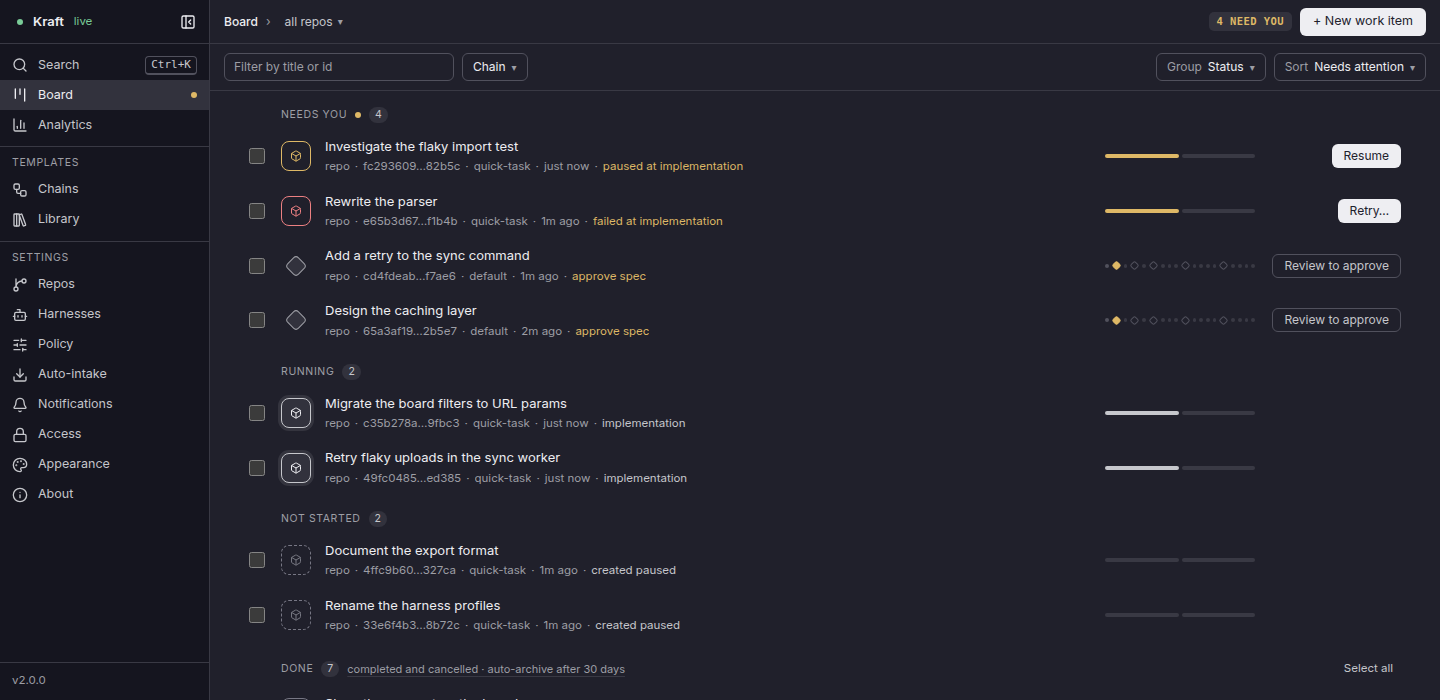
The Web UI reference describes each screen in the picture.
quick-task runs implementation, then verify, with no gate. If the agent's
fix is good, the item reaches Done on its own. verify runs the repo's own
test_scopes or test_command from repos.yaml. If a test fails, the item
stops and waits for you. Its stop reason names the failing command and its
scope, and kraft view logs ID shows that command's output.
When it is done, kraft view list shows the item with the status completed
(the NODE column is the last node it entered):
ID                                STATUS     GATE  NODE    TITLE
9d0ab38ff3c9439b90506df0f6966660  completed  -     verify  fix the flaky import test
You know it worked when the board shows the item under Done, and
kraft view list shows its status as completed. A failure shows as
needs_human, under Needs you: see Troubleshooting
below.
5. Where is my change?
quick-task opens no pull request: the change stays on the item's own branch,
in its worktree. To see it, run one of these with the item's ID:
| Command | What it does |
|---|---|
kraft view diff ID | Prints the change, against the base branch. |
kraft repo path ID | Prints the worktree's path. cd "$(kraft repo path ID)" goes there. |
kraft repo open ID | Opens the worktree in your default editor: the one set in Settings, else $KRAFT_EDITOR, else the OS default app, which needs a desktop session. --editor code, cursor, zed, obsidian or system picks one. |
Merge the branch yourself, or run the next piece of work on default, which
opens and merges a pull request for you.
You know it worked when kraft view diff ID prints the agent's change.
6. Try the real chain, and its gates
default opens and merges a pull request through your forge. Steps 1 to 5 work
without any of this; before you start default, the repo needs:
- A GitHub or GitLab remote, with
ghorglablogged in. - CI that runs on pull requests. Kraft waits for the merge request's checks
to pass. On GitHub, a pull request with no checks at all reads as "no checks
yet" and stays pending, so
merge_request_feedbackwaits until its 90-minute cap and then stops and waits for you. A repo with no CI can setci_checks: falseon its entry inrepos.yamlto skip both CI waits, before and after the merge. - A review rule only if you can meet it.
external_approvalwaits while a branch rule requires an approving review. GitHub does not let you approve your own pull request, so on a solo repo with such a rule it waits until you remove the rule or someone else approves. With no such rule it passes straight away, so a solo developer needs nothing here.
Check the forge first:
kraft admin doctor
gh auth status
gh auth status (or glab auth status) reports you as logged in. In the
doctor output, the repo's forge row reads like this:
ok forge my-project github · gh
It fails if gh or glab is missing, or if the repo had no GitHub or GitLab
origin when you connected it. For the second, set forge: github or
forge: gitlab on the repo in Settings › Repos and Review & publish (or in
repos.yaml). For a waiting item, see
Waiting on CI or a review.
default is the chain most work runs on, and the default for --chain unless
the repo sets default_chain, so you can leave the flag off here. Give resume
the new item's ID, not the first one's:
kraft item create "add a --dry-run flag to the sync command"
kraft item resume ID
Before any code is written it stops at three gates, one after another:
spec_approval, then plan_approval, then chain_revision_approval. The last
is about the chain itself: an agent checks the approved spec and plan against
the nodes still to run and proposes changes to them, and when it proposes none,
which is usual, the gate passes without asking you. Each gate shows up under
Needs you on the board. Open one to read the document it is about:
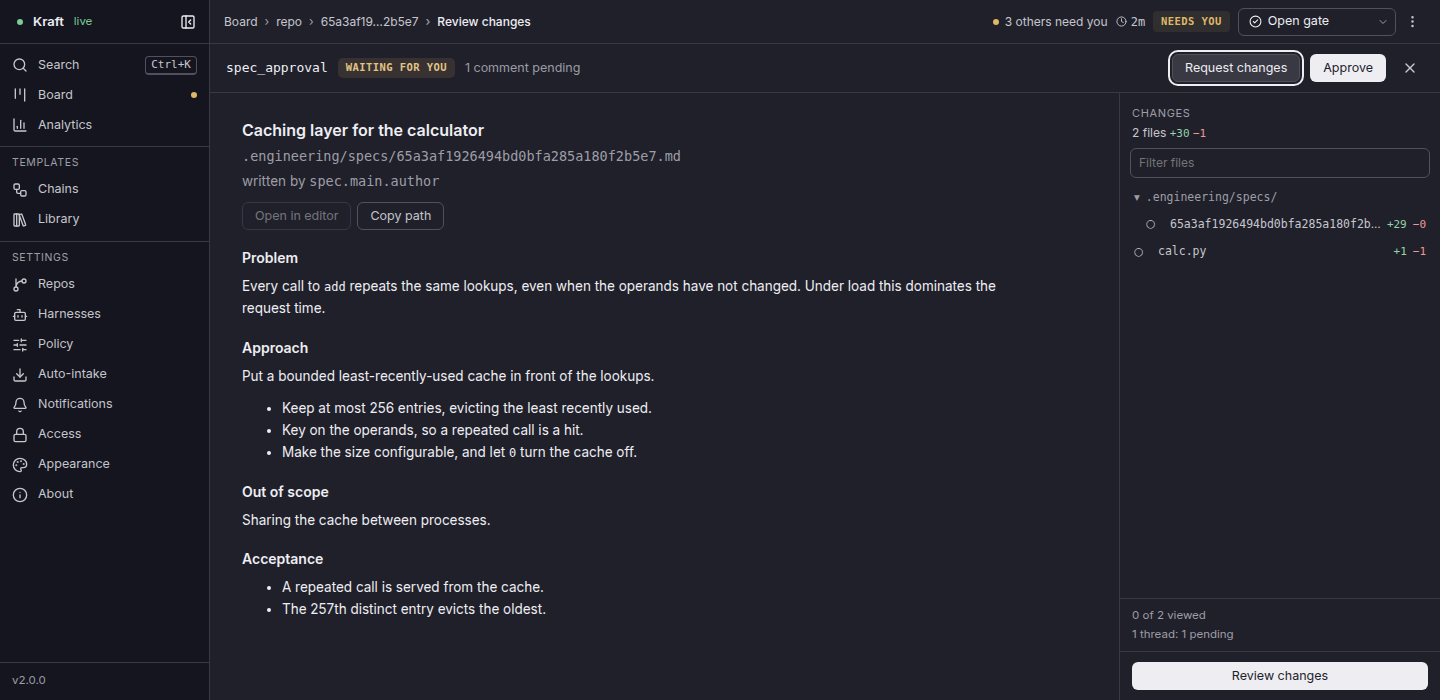
kraft view artifact ID reads the document the gate is about, and
kraft item approve ID approves it, as Approve does at the gate on the
item's page:
kraft view artifact ID
kraft item approve ID
approve names the gate it approved and says where the item is now:
approved spec_approval on 9d0ab38ff3c9439b90506df0f6966660; the item is now running
To send it back instead, run kraft item reject ID --note "...", or use
Reject… at the gate on the item's page. The node that wrote the document
runs again with your note. Request changes on the review page, the button in
the picture, sends the gate back the same way, with your summary and review
threads as the note: it is kraft item review ID request-changes, and
Reviewing a change covers it.
You know it worked when, after your last approval, the item moves out of
Needs you and into Running, and the board shows implementation started.
Implementation and tests take a while: the item comes back under Needs you at
local_review, which is step 7.
7. Review before it merges
After implementation and verification, the item stops at local_review, and
later at final_review. Each comes with a diff to read first.
kraft view diff ID --stat shows how big it is, and kraft view diff ID shows
the full diff:
kraft view diff ID --stat
kraft view diff ID
Kraft commits after every task, so by a gate the change is already on the item's branch. The diff opens with the change under review: every commit since the base, the item's spec and plan documents among them. Below it, uncommitted lists whatever an agent left in the worktree without committing. "(nothing uncommitted)" there is normal, not an empty review.
Approve local_review and Kraft opens a draft merge request and runs CI and
automated review on it. Approve final_review and it marks the request ready,
waits for the merge request's external approval on your forge, then merges.
Run kraft item approve ID at each gate, once you have read the diff, and
kraft view list to see the item's status:
kraft item approve ID
kraft view list
Each approve prints a line like that, naming the gate it approved. You know it worked
when kraft view list shows the item's status as completed and the merge
request shows as merged on your forge. If it stays under Needs you at a gate
you approved, or at a later one, see Troubleshooting.
What each gate does, and how caps and waits bound the chain, is in How a work item runs.
Troubleshooting
An item that stops shows under Needs you with a reason. Read it with
kraft view show ID, then the log of the session that stopped it with
kraft view logs ID, then check the install with kraft admin doctor. In
Claude Code, /kraft:triage does this for you, and offers to retry, raise a cap,
or hand the item back to you.
Troubleshooting maps every stop reason to its fix. These four are the ones a first run most often hits:
| It stops with | The fix is in |
|---|---|
... nothing registers it for Claude Code ..., at its first agent step with 0 tokens spent. | A task Kraft would not launch |
no setup_command declared for <repo> in repos.yaml ..., before its first node runs. | no setup_command declared |
A config error at its test node: the repo declares neither test_scopes nor test_command. | declares neither test_scopes nor test_command |
kraft admin doctor fails its agent: claude row. | The agent row and the service PATH |
Next steps
- Reviewing a change: comment on a work item and approve or send back a gate, from the web UI or the CLI.
- Run Kraft as a service: keep the server running in the background and start it at login, with
kraft admin install-service;kraftin a terminal stops when you close it. - Write your own chain: change what runs between filing and merge.
- Remote access: approve a gate from your phone.