Templates and Settings
Templates and Settings edit Kraft's configuration files as screens. This page describes the Chains and Library screens and each Settings screen.
Templates
Templates holds the two files an item is copied from, the chains and the library, as screens. Each one edits a draft: your changes take effect when you click Review & publish, which shows what changed and checks it first. YAML shows the file itself.
Open items, every one not done or cancelled, keep the chain they were filed with. The screens count them as open, not running: the board's Running group is only the ones an agent or a check is working on now.
Chains
Chains draws a chain as a graph, picked from the menu beside Chains.
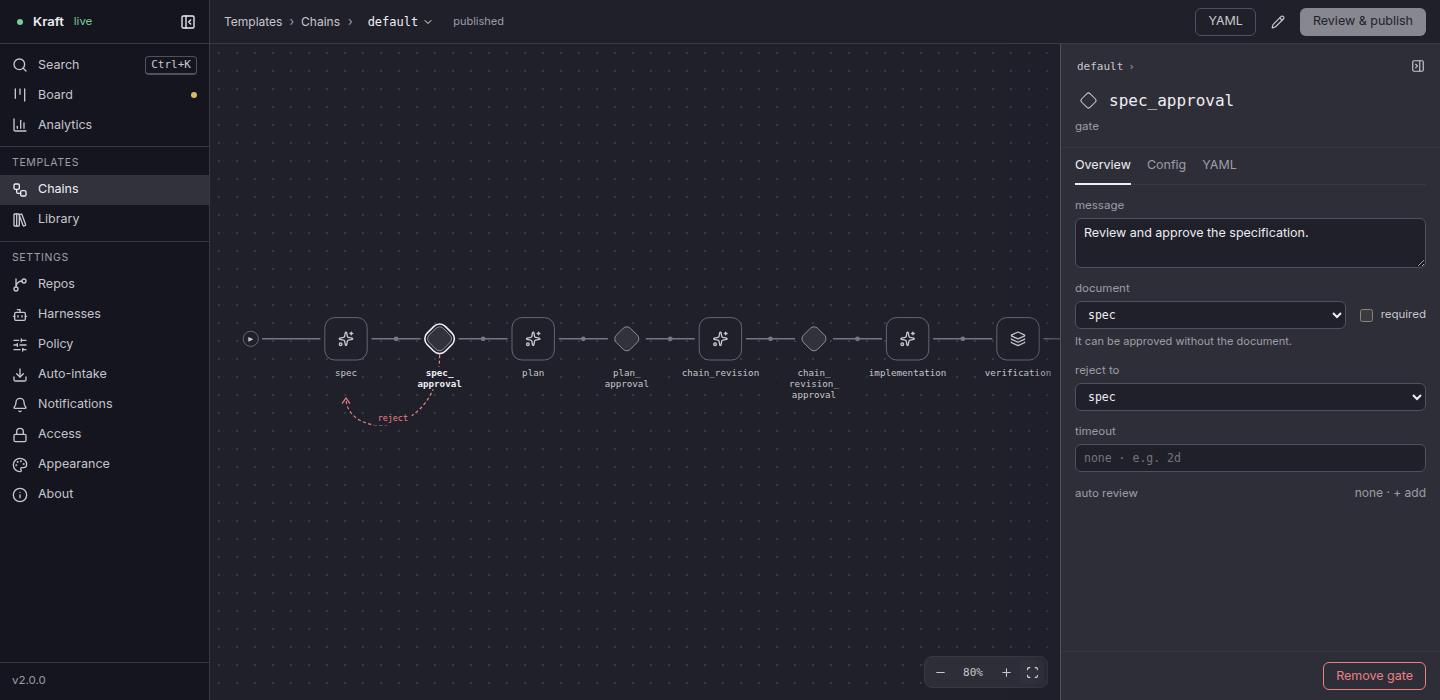
- Click a node to see and change its settings in the inspector; double-click it to open its own view of steps and tasks.
- The pencil opens the chain's own settings.
- Click the name at the top of the inspector to rename it in place: Enter
renames it, Esc keeps it. Renaming the chain itself shows as
old → newbeside Chains until you publish, and Review & publish lists it as a change: publishing moves its file to the new name, and new items name the new id. - A task's Config tab leaves out the agent settings a command or merge-request task never uses, unless its on-failure recovery runs under them, and a yes/no setting is a switch.
- Duplicate copies the chain under a new name.
In Chains and Library, ref, target and inputs list their allowed values as
you type, each with a line on what it does; Chain file keys
has the lists. So do steering, and a policy's grants and allowed_harnesses.
A value that is not on the list is marked where you typed it and is not saved.
An agent task's fallback is edited as its list of entries, a harness and an
agent profile picked for each. An entry's model and effort are set in YAML.
See Write your own chain.
Library
Library lists the components chains are built from, under Nodes, Steps, Tasks and Steering, each with how many chains use it.
Content from an add-on
A chain or component that an installed Kraft add-on ships is listed beside your own under its qualified name, such as release:ship, with a badge naming the add-on and its version: release@acme 1.0.0.
- It is read-only. The screens show its settings and its YAML, and offer no control that changes them.
- Copy to my library stands where Duplicate does. It asks for a name, starting from the bare one, and opens a draft of your own chain or component. The copy keeps resolving, because its references into the add-on are written out as
release:<name>. - The copy is yours: a later update to the add-on does not change it.
The phone layout shows add-on content and has no Copy to my library.
Add-ons are installed and updated with kraft admin addon, not on a screen. Install an add-on covers adding a collection and installing from it.
Settings
Settings holds the screens that set up Kraft itself: the repos it works on, the agent CLIs it drives, its limits, and how you reach it. Repos, Harnesses, Policy and Auto-intake edit a draft the same way as Templates.
| Screen | The file it edits |
|---|---|
| Repos | repos.yaml |
| Harnesses | harnesses.yaml |
| Policy | policy.yaml |
| Auto-intake | intake.yaml |
| Notifications | notify.yaml for the webhook. This browser is kept in the browser, not in a file. |
| Access | access.yaml |
| Appearance | theme.yaml |
| Storage | None. It reads the run folder; the limit and quota are in policy.yaml. |
| About | None. |
Repos
Repos lists the connected repos with each one's chain, steering, test command and state. Select a repo to change its fields, as below.
- Connect repo adds one. Given a repo already connected, it offers
Update instead, which saves only what the repo's entry left undecided, as
kraft repo connectdoes. - A repo with no commit yet cannot connect: Check again reads it once you have committed.
A repo's fields
In a selected repo's fields:
- No setup needed, beside its setup command, says that a fresh checkout
needs nothing installed (
setup_command: ""). - No tests, beside its test command, says the repo has no tests
(
test_command: ""): its items pass verify without running any, and the list showsno tests (passes verify). Untick No tests and the test command is no longer set, which stops each item at verify. Kraft refuses that save while the repo is enabled and has no test scopes: disable the repo, or set test scopes, in the same change.
See repos.yaml.
Harnesses
Harnesses lists the agent CLIs Kraft can drive and whether each is available, and the agent profiles tasks pick a model by. + Profile adds one. See Switch a task to another harness.
Policy
Policy has three sections:
- Limits: time, token and dollar caps by scope: the work item, nodes, steps and tasks, plus the daily dollar cap.
- Loops: fix-loop defaults, findings and stuck-item handling.
- Housekeeping: concurrency, relaunches, archive, the forge timeout, and the worktree storage limit and quota (a size such as
10G; blank is off, and a blank quota is 80% of the limit). Automatic clean-up takes an age in hours or days (24h,2d); blank is off.
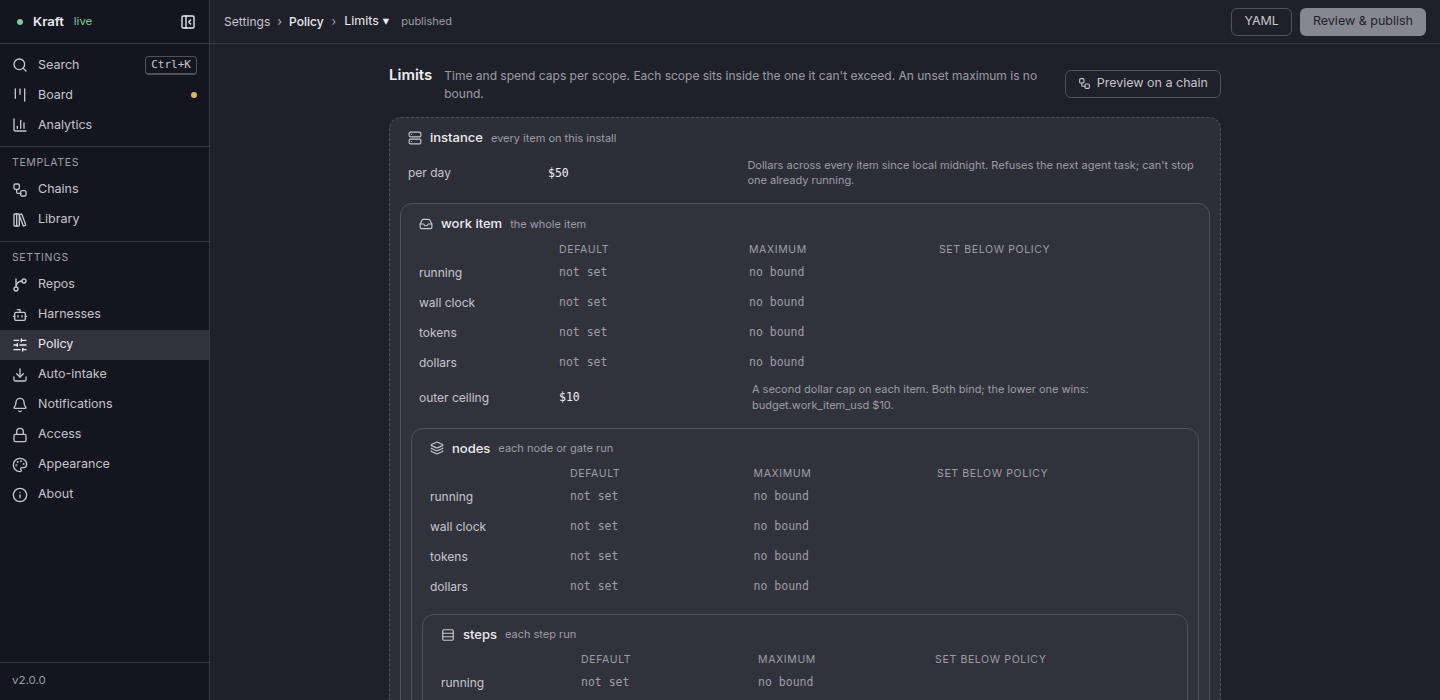
See Caps and budgets.
Auto-intake
Auto-intake sets whether Kraft picks up ready issues from beads by itself, and its
schedules (Add schedule), both in intake.yaml. How many items run at once
is Policy › Housekeeping. See
Schedule or webhook work.
Notifications
Notifications sets where Kraft tells you it has stopped and waits for you: a Webhook, and This browser. Send a test checks each one. See Get notified when an item needs you.
Access
Access sets who can reach the board: This machine only (127.0.0.1, no
password) or Local network (0.0.0.0, password required). It also holds the
port, the allowed hosts and the password. A change takes effect on restart. See
Remote access.
Appearance
Appearance sets how the web UI looks and a few defaults. It is saved in
theme.yaml.
- Light, Dark or System; how much color; the surface and accent colors.
- Further down, the board (Open items in: Peek, the side panel, or Full page), the review diff's layout and syntax highlighting.
- The Default editor that Open in editor uses: the editors found on
this machine, or Not set, which uses
KRAFT_EDITOR, else the system's default app.
Storage
Storage shows what the worktrees use against the limit and quota you set under Policy › Housekeeping, and archives finished items when you confirm. It has no file of its own.
- Usage is a bar for the figure Kraft compares with the limit:
worktrees/,sandbox-git/andsandbox-home/underrun/. The quota and the limit are marked on it. It turns amber over the quota, and red over the limit, where the page says starts are held. With no limit set it shows the figure and a link to the Housekeeping storage rows. - Where it goes totals worktrees, sandbox stores and homes, logs, results, databases and their backups, attachments, and everything else.
- Worktrees has one row per worktree, largest first: the item (a link to its page), its status, its size and when it last changed. A completed or abandoned item that is not archived is reclaimable and has a box. A folder with no work item is listed and cannot be selected.
- Clean up selected and Clean up all reclaimable open a confirmation that shows, before anything is removed, what is freed, where usage lands against the quota and the limit, and per item its size, the uncommitted files that will be lost, and whether its branch stays. Each item moves to Archived, where you can restore it as a record, without its worktree.
- Refresh measures again, which can take half a minute on a large instance. The age beside the title says when the figure was taken.
The phone has no Storage screen; its address opens More. See Logs and disk space.
About
About opens from the version line at the sidebar's foot, and from the last entry under Settings. It shows:
- the version, whether an update is available or waits on a restart, the command to install it, and the release channel;
- this instance's address and whether it asks for a sign-in;
- its run directory and health, and the Python it runs on.
Copy diagnostics copies them for a bug report.
Related
- Chain file keys and Write your own chain: what the Chains screen draws, and how to change it.
- Configuration: the YAML files these screens edit.
- Share chains with add-ons: install an add-on whose chains this screen lists.