Kraft on a phone
Open Kraft's board on a phone and act on what needs you from it: the layout switches on a screen narrower than 768 pixels, at the same address as the desktop, and each card and each stopped item offers its own buttons.
Before you start
Your phone must be able to reach the server. See Remote access for how, and for signing in. The phone signs in the same way as the desktop.
The layout
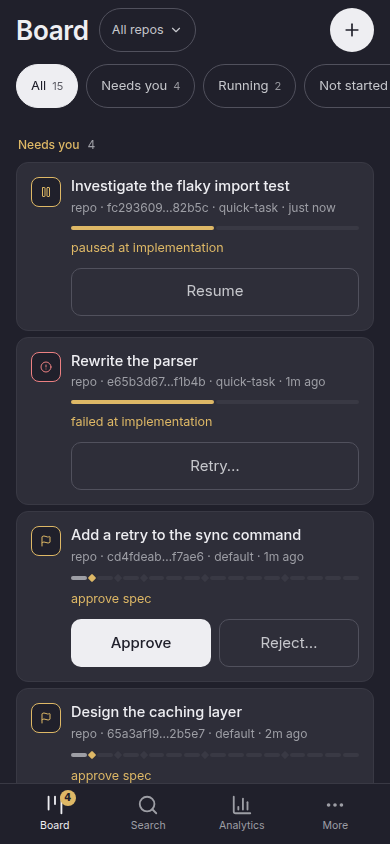
The layout switches on its own when the window is narrower than 768 pixels, with no setting to turn on. It is the same app at the same address, so a link copied on one opens on the other. Widening the window brings the desktop layout back on the same page.
- A bar at the bottom holds Board, Search, Analytics and More.
- More lists everything else: Chains, Library, Repos and Harnesses, then Policy, Auto-intake, Notifications, Access, Appearance and About, then Analytics and Archived. An archived item opens from there, and Restore on the item puts it back on the board.
- The phone has no first-run wizard. With no repo connected, the board says
"No repository is connected": connect one from a computer, or run
kraft repo connectin the repo on the machine Kraft runs on.
A phone screen the desktop has no page for lands on the nearest desktop page, when the window widens or a link sent from a phone opens on a laptop. More lands on the board. One harness, agent profile, schedule or notification channel lands on its list, with the harness or agent profile selected.
The board on a phone
The board filters by All, Needs you, Running, Not started and Done, the desktop board's groups. The + button files a new work item (New work item), as File a work item describes.
A card that needs you carries its own buttons:
- Approve and Reject… for a gate;
- Answer… for a question;
- Retry… for a failed item;
- Raise cap for a cap and Raise budget for a dollar cap. Those two open the item with its raise sheet over it, or on its card, which says why, when the item can't raise it.
Tap the card for the item. Approve asks first, naming the node the item moves on to, since a passed gate is not taken back. Open the review there reads the gate's document instead.
After kraft admin update installs a release under a running server, the board
says so in a line under its filters, as the desktop's sidebar does. Restart to
finish the update. For an older release installed over a newer one, read About
first.
An item on a phone
An item opens as its chain, node by node. Tap a node for its tasks, a task for its log.
- A node whose fix loop has gone past its first round shows a chip for each round. Tap one to see that round's tasks, and the loop's repair and judge for it. Each opens like any other task.
- A node the chain ran again, after a gate rejection, a retry or a base change, shows a chip for each pass above the rounds. Tap one for that pass's rounds, tasks and logs. A task or scope opened from it says which pass it is.
- A task that ran more than once in a round offers its attempts. A test task that picks scopes lists them instead, each with its command. When the item spans several repositories, each scope is under its repository's name.
- Tap a scope for its command, the paths that select it, how the other rounds treated it and, once it has run, its log.
- A test task reads failed when one of its scopes failed, even if a later one passed.
- Review and decide opens the gate's document and diff.
- Comments you added there and have not sent are counted as pending, beside the document's name too, and each is marked pending.
- A thread names its lines as the desktop does (
lines −2 to +6) and quotes them. A thread on the whole change is listed above the files. - Approve asks before it sends pending comments with the approval.
- An item that has not started offers Start. When its draft holds changes Start would not apply, Start lists them and asks first: Apply and start, or Start without them. A spec or plan attached when it was filed is listed under its title; tap one to read it.
A node's bar offers Retry node only once the item has stopped. On a paused item it offers Skip node and Resume. A node waiting on CI offers Pause and Skip node. A rate-limited node offers only Pause, so pause it first to skip it.
The bar on a stopped item
A stopped item has an action bar at the bottom with one or two buttons, chosen by why it stopped:
| Why it stopped | The bar offers |
|---|---|
| At a gate | Reject… and Review and decide |
| A failure, or most other stops | Escalate and Retry |
| A question | Escalate and Answer |
| A merge conflict | Cancel… and Review the conflicts |
| A closed merge request | Cancel… and Reopen MR |
| A cap that names its limit | Steer and Raise cap |
| A cap that names no limit | Steer and Retry |
A dollar cap the item can raise (its own cap, or the item-wide budget_usd) | Raise budget alone, with no Steer |
| A daily, token or node-level cap | Retry alone |
| An escalation running | Retry, which stops the escalation and retries the node |
| Waiting on a rate limit or on CI | Pause alone |
| Blocked behind an unfinished item, which its card lists | Unblock and Pause |
- Steer retries the node with your note. Raise cap opens a one-number sheet titled for that limit, such as Raise the running time cap.
- For a daily, token or node-level cap, the card says the item can't raise that cap, so raise it in the policy or the chain first.
- While an escalation runs, its node bar offers Retry node. Pause, Steer and Skip wait until the escalation answers.
- An item waiting on a rate limit or on CI is retried by Kraft itself. Its node reads waiting on CI or waiting · rate limit, not running.
Check it worked
Open Kraft on your phone, or make the browser window narrower than 768 pixels. The board shows the bottom bar with Board, Search, Analytics and More, and a card under Needs you carries its own buttons.
Next steps
- Remote access: reach Kraft from your phone over a tunnel, and fix a 403.
- The board: the desktop board's groups and rows, which the phone's filters mirror.
- Raise a cap on a stopped item: what Raise cap and Raise budget open.
Kraft for VS Code
Install the Kraft extension to clear gates, review a branch's diff, and edit Kraft config files without leaving VS Code.
Get notified when an item needs you
Set up a webhook or alerts in your browser, so Kraft tells you when a work item waits at a gate or stops, and check that a test reaches you.