PRODUCT · TOUR
Where you work with Kraft.
01 · BOARD
Every work item, grouped by what it needs.
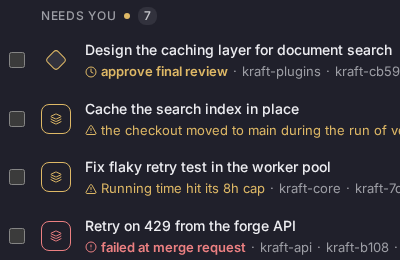
The board lists your work items in four groups: Needs you, Running, Not started and Done. Needs you is always first.
A row says why it's where it is and carries one button, such as Review, Answer, Retry or Raise cap. Filter by chain, gate or stop reason.
Docs: The board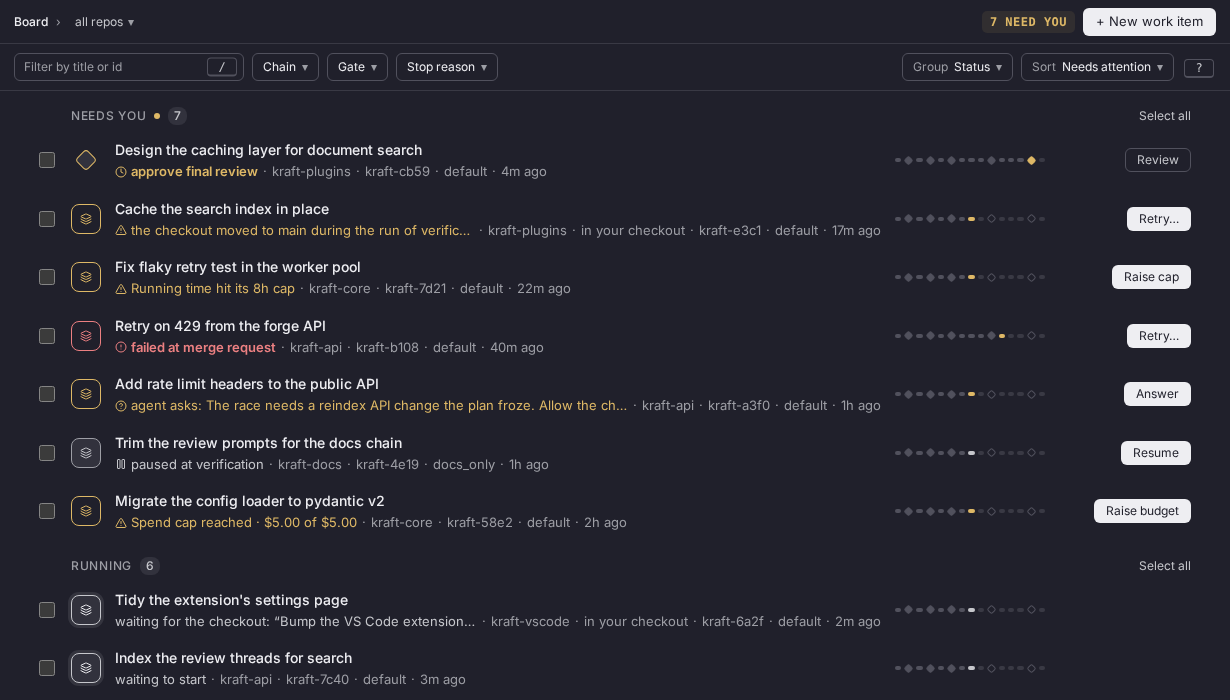
02 · ITEM PAGE
One item, with its chain drawn out.
An item's page shows the brief and the chain as a graph of named nodes. Select a node, a gate or a task and the inspector shows its detail.
Each state has one main action: Start, Pause, Resume, Review or Retry from the stopped task. A banner says when the item is waiting for you.
Docs: An item's page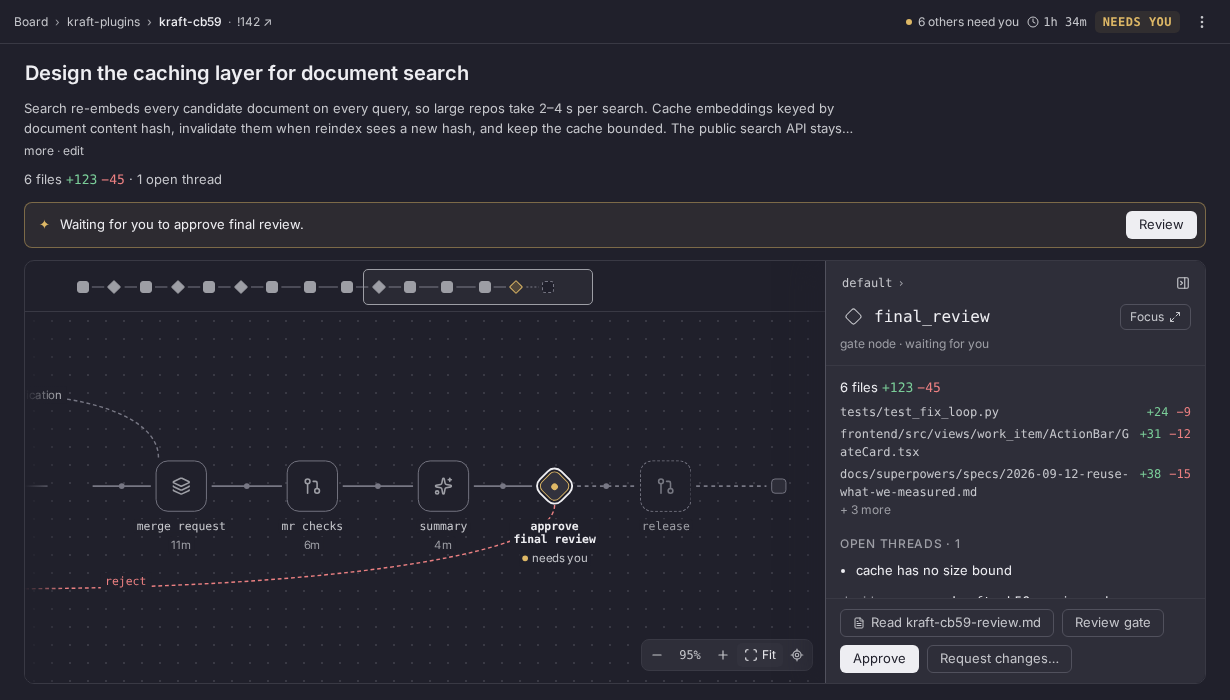
03 · REVIEW PAGE
The diff, with your review along the bottom.
The review page shows an item's diff with a review bar beneath it. Comment on a line, mark files Viewed, then request changes or approve.
At a gate it opens on the gate's document. Compare from the base, an earlier attempt or your last review, to read only what changed.
Docs: The review page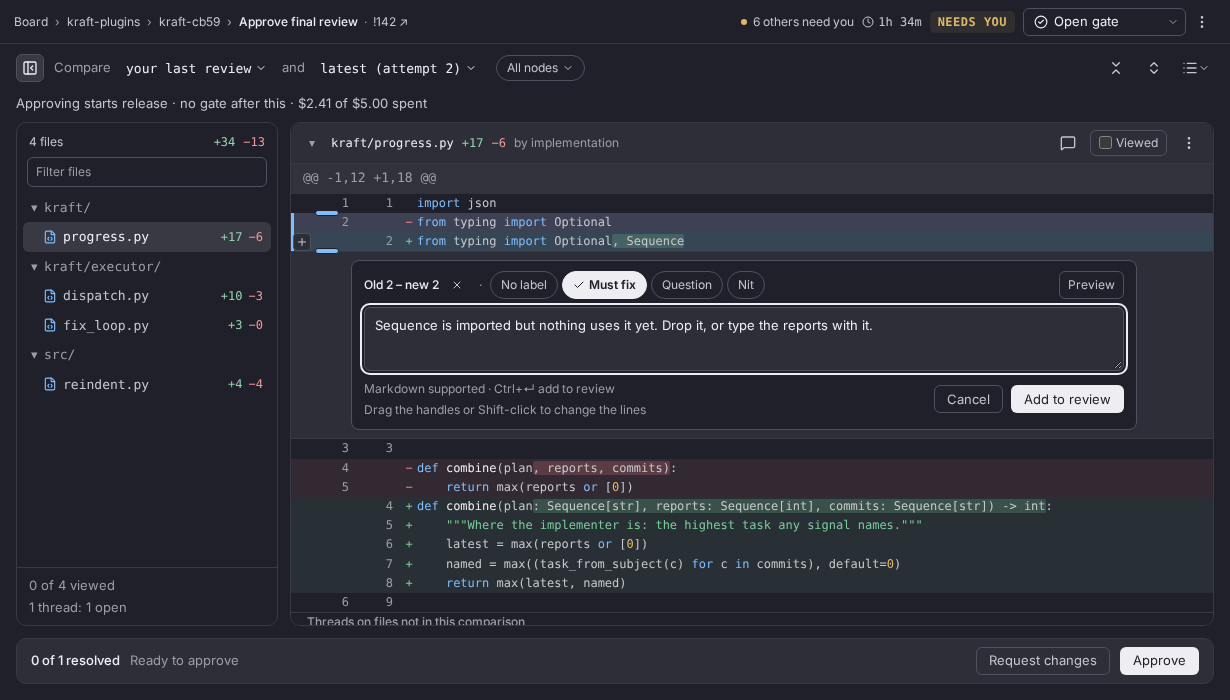
04 · PHONE
The same board, narrower.
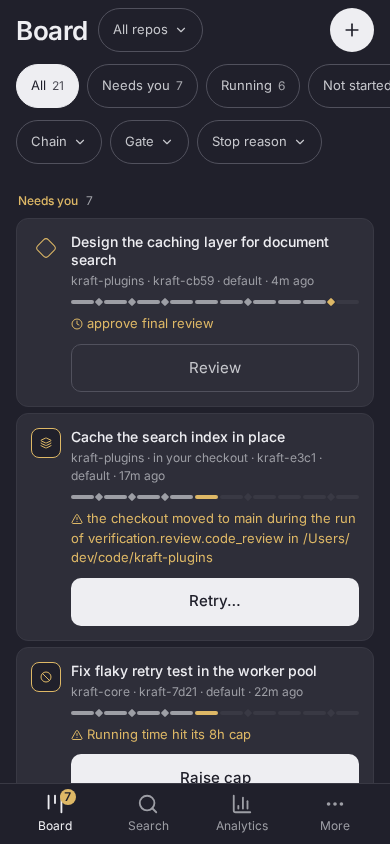
Below 768 pixels the board switches to a phone layout at the same address. A card that needs you carries its own buttons, such as Approve and Request changes.
Set up a webhook or browser alerts and Kraft tells you when an item waits at a gate or stops.
Docs: Kraft on a phone05 · ANALYTICS
Where the time and the money went.
Analytics rolls up lead time, cost, repairs per item and throughput across your work items. Filter by range, repo or chain.
It keeps time waiting on you apart from run time, so a slow reviewer doesn't read as a slow agent.
Docs: Analytics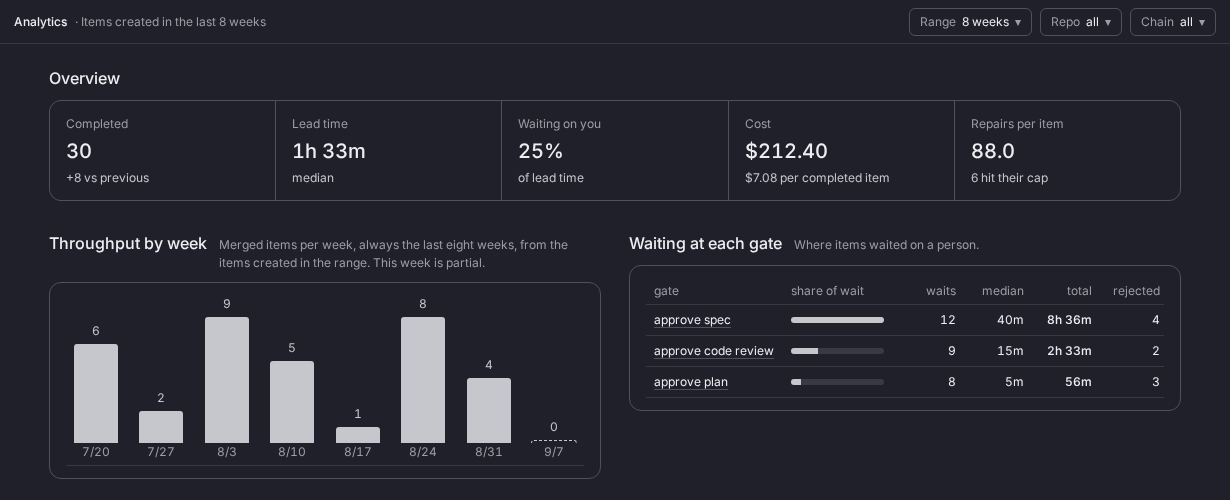
06 · VS CODE
The board in your sidebar.
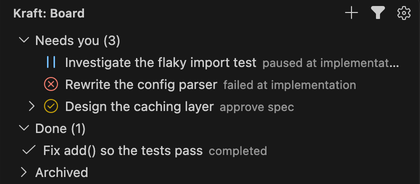
The Kraft view lists your items in the board's groups. A gate opens as a rendered document, with Approve and Reject in the tab's title bar.
Review a branch in the diff editor, file work from a Markdown file and see errors in Kraft's YAML as you type. It works in Cursor and VSCodium.
Docs: Kraft for VS Code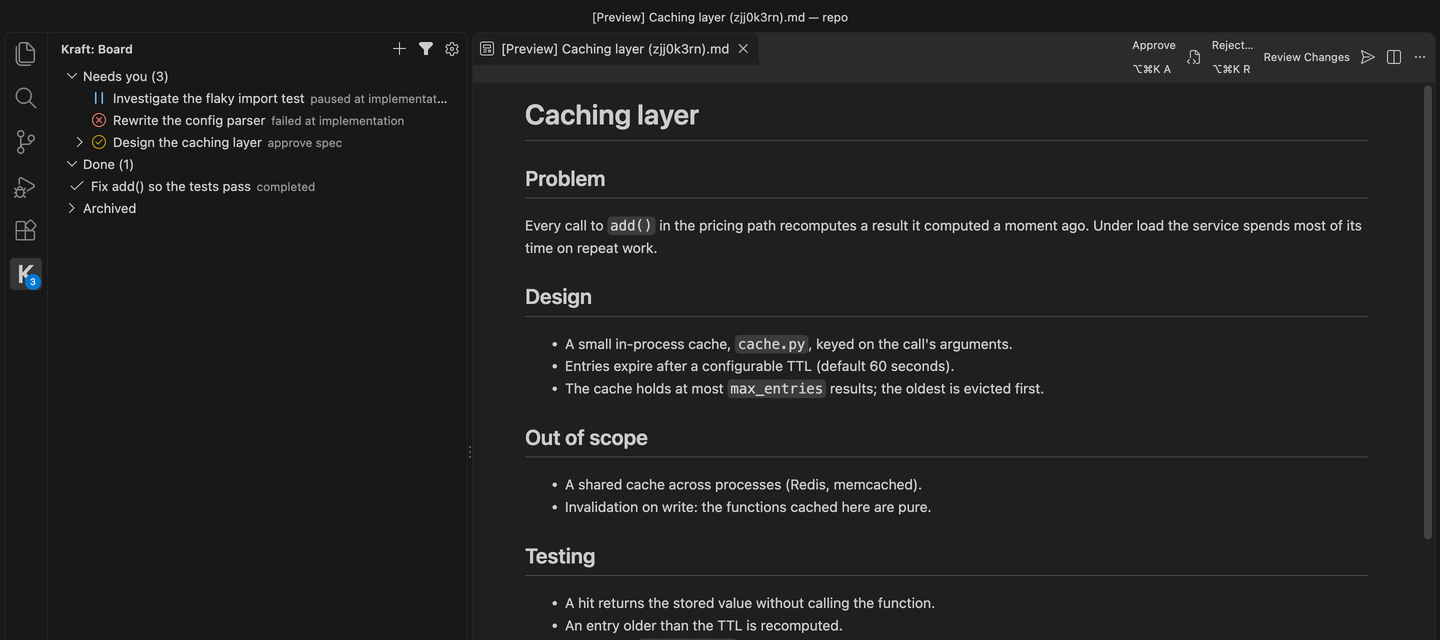
07 · CONSOLE
The board, in a terminal.
kraft console opens a terminal UI with Board, Server, Add-ons and Repos screens. It shows the web UI's statuses, words and colours.
Peek at a spec or press n to file an item. It suits a tmux pane or SSH.
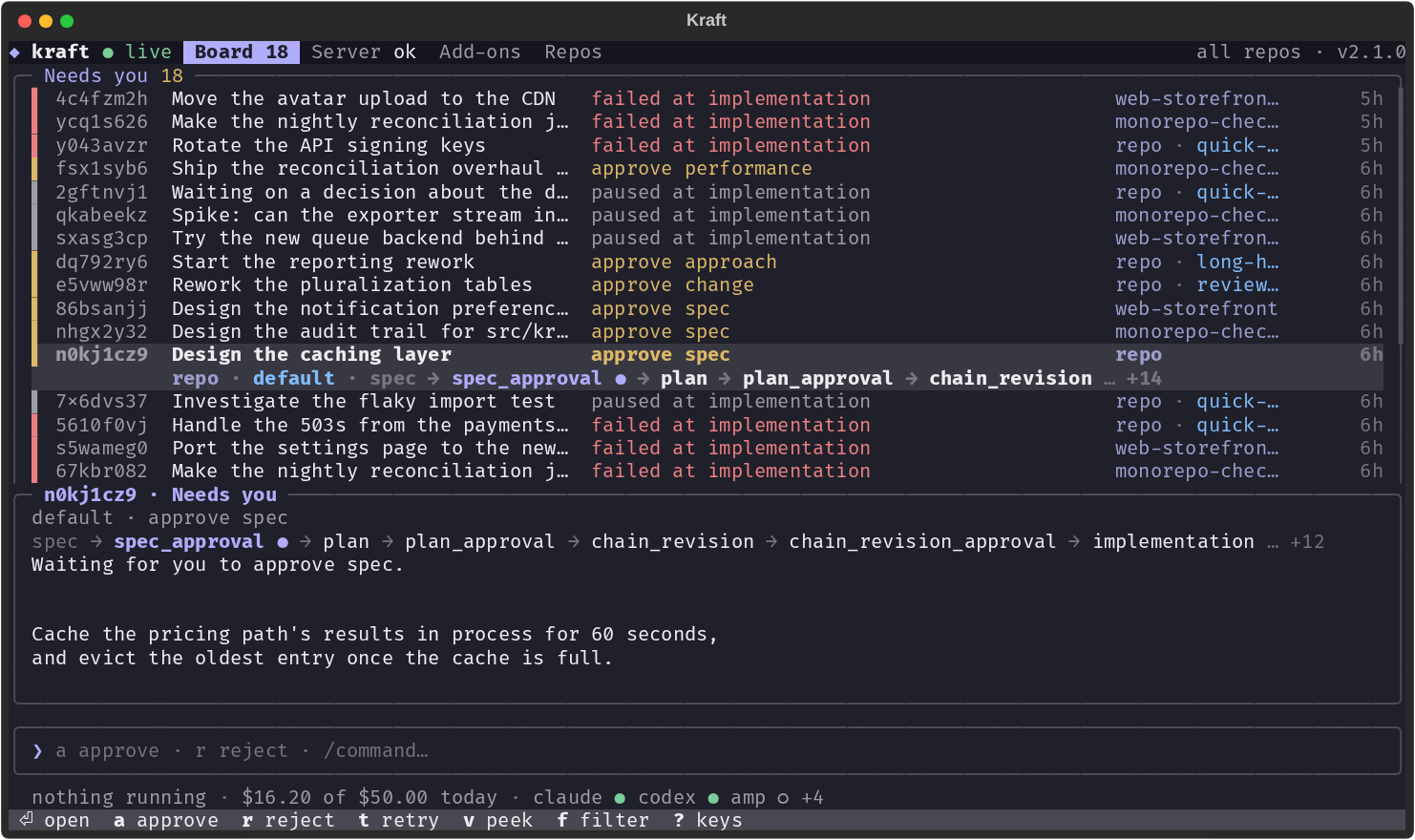
kraft console on the board's Needs you group, with a peek at the spec.08 · AGENT PLUGIN
Drive Kraft from your agent's session.
The Kraft plugin gives Claude Code, Codex, Cursor and Antigravity slash commands and MCP tools. File work and clear gates without leaving the session.
Ask "what is waiting on me in Kraft?" and the agent answers from the board. Other agents reach the same tools through the MCP server.
Docs: Use Kraft from your agent/kraft:handoff- File work you settled in this session.
/kraft:board- What is running, blocked or waiting on you.
/kraft:status- Where one work item has got to.
/kraft:review- Read a gate's document and recommend a call.
/kraft:gates- Approve, reject or skip a gate.
/kraft:steer- Pause, resume or redirect a work item.
/kraft:triage- Why an item stopped, and how to restart it.